ENT16 brings together the homework diary, messaging, and calendar of the 38 public colleges in Charente since January 2024. Accessing your courses and homework on ENT16 from a smartphone requires understanding how authentication, the web portal, and third-party applications like Pronote work on a mobile screen. This article compares the two mobile access pathways and details the settings that make a difference in daily use.
Mobile Browser Access or Pronote App: Comparison of ENT16 Pathways
There are two ways to access ENT16 from a phone. The first is through the mobile browser (Safari, Chrome, Firefox) by going to the ENT16 portal via EduConnect. The second uses the Pronote app, which connects to the ENT via a QR code or a link provided by the institution.
| Criteria | Mobile Browser + ENT16 | Pronote App |
|---|---|---|
| Authentication | EduConnect (unique identifier) | QR code or institution credentials |
| Access to Pronote | Automatic without re-entering credentials | Direct, but initial setup required |
| Homework Diary | Yes, via the native ENT16 module | Yes, dedicated view |
| Push Notifications | No (unless added to home screen) | Yes, configurable |
| ENT16 Messaging | Yes | No (Pronote messaging only) |
| Offline Access | No | Partial consultation possible |
The browser pathway offers complete access to all applications integrated into ENT16 (messaging, blog, document space). In contrast, the Pronote app is limited to school life functions: grades, schedules, homework. The choice depends on what the student or parent consults most often.
To better understand how the platform works, you can access ENT16 on Libremploi and find a detailed guide to mobile connection steps.
EduConnect Authentication on Smartphone: What Blocks the First ENT16 Connection
Mobile access to ENT16 goes through EduConnect, the authentication service of the National Education. On a computer, the process is smooth. On a smartphone, several obstacles slow down the first connection.
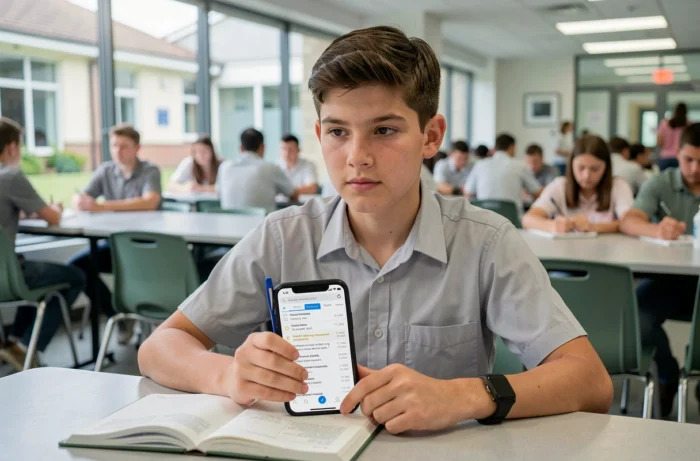
The EduConnect portal opens a login page in the phone’s built-in browser. However, some default browsers (notably on Android) do not properly retain session cookies. As a result, the page redirects in a loop or requests a second authentication when accessing Pronote from the ENT.
Steps to Stabilize Mobile Connection
- Use Chrome or Safari instead of the manufacturer’s browser (Samsung Internet, for example) to ensure compatibility with the SAML authentication protocol used by EduConnect
- Enable third-party cookies in the browser settings, as ENT16 and EduConnect operate on distinct domains that exchange session tokens
- Add the ENT16 page as a shortcut on the phone’s home screen, which opens the site in quasi-app mode and keeps the session longer
- Ensure that the EduConnect password has been personalized during the first connection on a computer, as the temporary password expires and blocks mobile access without an explicit error message
The link from ENT to Pronote is more stable than direct access to Pronote from the mobile app. By going through the ENT16 portal, single sign-on avoids re-entering credentials each time you open it. The Pronote app, on the other hand, requires a QR code generated from the web space, and this QR code has a limited validity period.
ENT16 Notifications on Mobile: Settings and Real Limits
Consulting homework from a smartphone is only useful if you receive an alert when a teacher publishes new content. Not all ENT16 notifications are enabled by default. The homework diary and messaging require adjustment in the account preferences.
Configuring Alerts on the ENT16 Homework Diary
In the ENT16 account settings, the “Notifications” section allows you to check or uncheck each type of alert. Homework diary alerts are disabled by default. A student who does not change this setting will not receive any signal when a homework assignment is added or modified.
In the Pronote app, push notifications work natively for homework and grades, provided notifications have been enabled in the iOS or Android settings of the phone. The difference is notable: Pronote sends an alert as soon as it is published, while the ENT16 portal in the browser only offers a summary email, which is less responsive.
Which Path for Which Profile
A student who wants an immediate reminder before a test should configure the mobile Pronote with push notifications enabled. A parent who wants to follow messaging and general college information will benefit from using the browser and the ENT16 portal, which provides access to all digital services.
The challenge is not to choose between the two, but to combine them. Mobile Pronote serves as a real-time alert for homework and grades. The ENT16 portal via browser remains the access point for teacher-parent messaging, the institution’s blog, and shared documents.
ENT16 Homework Diary on Smartphone: Reading and Available Features
The digital ENT16 homework diary displays, for each day, the activities carried out in class and the work to be done. On a smartphone, the display adapts responsively, but some features are less accessible than on a computer.
Attachments in PDF or image format open directly in the mobile browser. Office format files (DOCX, PPTX) require a third-party application or redirect to an online viewer, which adds loading time.
The weekly view of the homework diary, practical on a large screen, transforms into a vertical list on mobile. This presentation simplifies scrolling but makes it more difficult to get an overview of the week. For a student planning their revisions, consulting the homework diary on Sunday evening on a computer remains more effective than daily consultation on a phone.
Several Charente institutions have included in their internal regulations the obligation for teachers to enter homework and assessments on ENT16. This requirement ensures that the digital homework diary is the official source, making mobile consultation reliable for organizing work.
The interplay between the browser and the Pronote app, the configuration of notifications, and understanding the limits of mobile display constitute the three points that concretely determine the quality of access to ENT16 from a phone. The first connection via EduConnect remains the most sensitive step: once correctly completed, daily consultation of courses and homework takes only a few seconds.